How to Automate Repository Backups to Minimize Data Loss and Downtime

SUMMARY
- Manual backups fail to meet the needs of contemporary DevOps ecosystems because they are error-prone and don’t scale well.
- Automated backups ensure always-fresh copies and compliance, relieve your IT security team, and bring other significant benefits.
- Scripted and native methods of automating repository backup are maintenance-intensive, involve manual restoration, and do not separate backups from production.
- Professional backup tools overcome these limitations and deliver extra benefits like quick granular recovery, throttling prevention, and cross-platform restore capabilities.
In modern CI/CD pipelines, source code moves fast, and repository state changes constantly. Manual backups are inherently fragmented, error-prone, and incapable of capturing platform metadata at scale. To prevent critical data loss and ensure rapid failover, engineering teams must automate their repository backups.
From this article, you’ll learn why automation is crucial, see how to set up automated repo backups, and discover what options you have to automate code backup.
Why automate backups for Git repositories
There are several good reasons to run scheduled and automated backups. Each of them brings tangible benefits for your organization.
Minimize data loss with fresh backup data
First, backup automation ensures that you have the most up-to-date copy of your most important assets: source code, metadata, and LFS objects. With up-to-date backups, you can simply resume your current operations, minimizing data loss and downtime.
If you think that your DevOps platform provider (e.g. Bitbucket) handles backups for you, you’re overlooking the shared responsibility gap. The provider takes care of infrastructure durability, not logical data loss, for example, due to human error, when your developer runs a faulty script that purges 500 private repos from your organization’s GitHub account.
In fact, Terms of Service agreements for major SaaS (cloud) platforms explicitly state that data restoration following customer-side deletion, corruption, or ransomware is either unsupported or available only on a best-effort basis through expensive professional services engagement.
There’s also the Bin mechanism. However, with a retention of 14-30 days (differs between providers), it won’t protect you if you lose track of a tiny yet important deletion—just like we experienced firsthand with Jira.
Enable cross-migration in the case of prolonged downtime
While your provider takes care of infrastructure durability, they may fail too, completely halting your DevOps operations. Centralized Git hosting providers (e.g., GitHub, Azure DevOps) do experience service outages. It’s enough to say that the total service degradation (downtime included) for major DevOps platforms was over 9,000 hours in 2025 alone, according to findings from our DevOps Threats Unwrapped Report.
With automated, fresh, and vendor-agnostic backups stored in independent cloud storage (such as AWS S3 or GCP), your team can spin up an alternative self-hosted Git server or switch vendors during a catastrophic incident.
Ensure your organization’s compliance
While many legal frameworks don’t explicitly mention “automated backups”, they often mandate them through strict recovery objectives like DORA or NIS2. Other frameworks, such as SOC 2, ISO/IEC 27001, or HIPAA, define outcome-based standards, which simply can’t be achieved through the manual approach.
Compliance-ready automated backup is one of the benchmarks that either brings you one step closer to achieving certification (during an audit) or avoiding penalties (during a post-incident review by an authority).
Eliminate inconsistencies of manual workflows
With manual backups in place, it’s virtually impossible to keep up with intensive software development operations. What’s more, non-automated copies are error-prone: they can be partial or offer weaker security, for example, because a backup operator has forgotten to enable encryption when in a hurry.
Key technical consideration: a standard, manually initiated Git clone only copies the commit history, branches, and tags. It completely ignores platform-specific metadata essential to daily operations, including pull/merge requests, code review comments, issue trackers, or wiki pages.
Relieve your IT security team
Finally, manually initiated backups can considerably burden your IT security team, especially in read/write-intensive development environments that require high backup frequency.
Automation can save a lot of time in this respect. What you also need to remember about are automated error messages (notifications) sent to the security team members. Just to avoid situations where backups silently stop being executed for some reason.
What automated backup options you have
There are a few ways to automate repo backups. We’re listing them in the table below, highlighting their pros and cons:
| Method | Basic working principle | Pros | Cons |
| Backup scripts and cron/systemd | You set up a backup server (e.g., a Linux VM) to run backup scripts as cron jobs on it. | – Zero licensing cost – Full control | – Maintenance-intensive – Difficult, manual recovery – Seems free, but may require lots of your staff man-hours |
| CI-based backups (e.g., GitHub Actions) | You use CI pipeline YAML configuration files to set up and run backup processes natively. | – Easy deployment with YAML pipeline configuration files – No backup server infrastructure required – Built-in reporting | – Production and backups in the same environment – Risks related to shared secrets – Susceptible to API rate limits |
| Containerized schedulers (e.g., Kubernetes CronJobs) | A container orchestrator automatically spins up an ephemeral container that executes the backup tasks. | – Reliable execution with native orchestration – Ability to use IAM roles – Ability to take advantage of immutability | – Operational complexity – Requires custom code maintenance to extract SaaS metadata and adapt to platform API changes |
| Live cross-platform repository mirroring | The native feature that mirrors repositories by syncing code changes in real time from a primary Git host to a secondary platform. | – Near-zero Recovery Time Objective (RTO) – Continuous, real-time synchronization – Simplified setup using native capabilities | – Destructive actions (.e.g deletion) propagated instantaneously – No support for essential platform metadata – Requires maintenance of a secondary platform |
| Native backups from your Git platform provider | Use add-on from your Git platform provider (e.g. GitHub) to run backups natively from the platform’s UI. | – Official vendor support – High restoration fidelity | – Production and backups handled by the same vendor – High storage costs – Lacks fine-grained recovery |
| Dedicated third-party Git backup and recovery platform | No-code approach where you integrate a professional and supported backup tool with your Git organization. | – Easy, UI-based solution – Modern automation and security features out-of-the-box – Minimum maintenance – Technical support included | – Licensing cost – Potential issues with legacy resources |
The easiest method is a dedicated third-party backup and recovery platform. With this approach, you avoid scripted, maintenance-intensive custom solutions, while keeping copies outside your primary Git platform, which may be the disadvantage of the native backups.
How to automate repo backups with a dedicated Git backup tool
To show you how to handle automated repository backups for your organization, we’ll use GitProtect, our proprietary Git backup platform.
Backup automation with fine customization
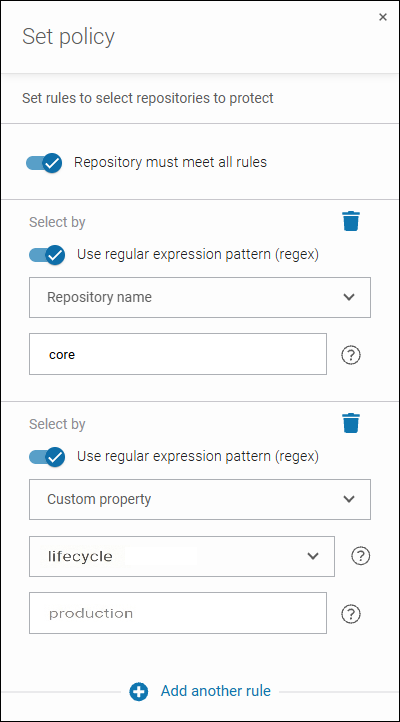
Your Git organization may include thousands of repos. Apart from the standard checkbox-style selection, GitProtect supports selection rules with regular expressions to automate and speed up the process of choosing the repositories you wish to protect. In addition, the auto-discovery feature makes sure you won’t miss anything.
For GitHub backups, you can also base your rules on custom properties synced from your GitHub account. This way, you can control which repos to back up directly from your GitHub.
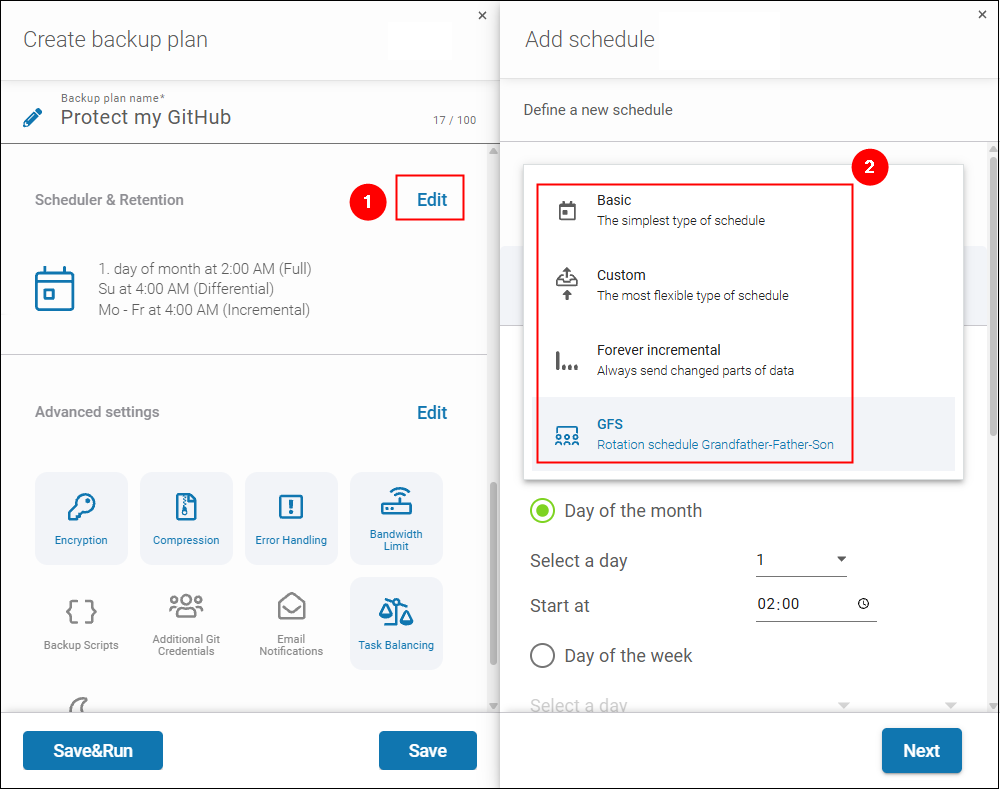
After choosing what to protect and where to keep copies safe (GitProtect supports multiple cloud and on-premises locations), you move on to the Scheduler & Retention settings. These are, in fact, the central hub for repository backup automation.
First, you need to choose a backup schedule. The schedule specifies what copy types (e.g., full backups, incremental backups) you want to use to build your backup copy chain. These are quick characteristics of the schedules—for more information, use the links:
- Basic—typical scenario, where a full backup runs once over a longer period (e.g., monthly), while small incremental backups (storing just changes) run much more often (e.g., daily or hourly). It’s the easiest to use.
- Custom—this one gives you the highest flexibility with full customization of copy types and days/times.
- Forever incremental—a full backup is created only once. Next, only incremental backups are created at a predefined interval. It’s not resource-intensive, which is a good fit for throttled, cloud DevOps environments.
- GFS (Grandfather-Father-Son)—it’s a fixed scheme where full backups (Grandfather) run once a month, differential backups (father)—once a week, and incremental backups (son)—once a day.
Using incremental copies helps you save storage space, while schedules, in general, are a way to adapt backups to your needs and meet demanding Recovery Time Objective (RTO).
Learn more about backup schedules available in GitProtect
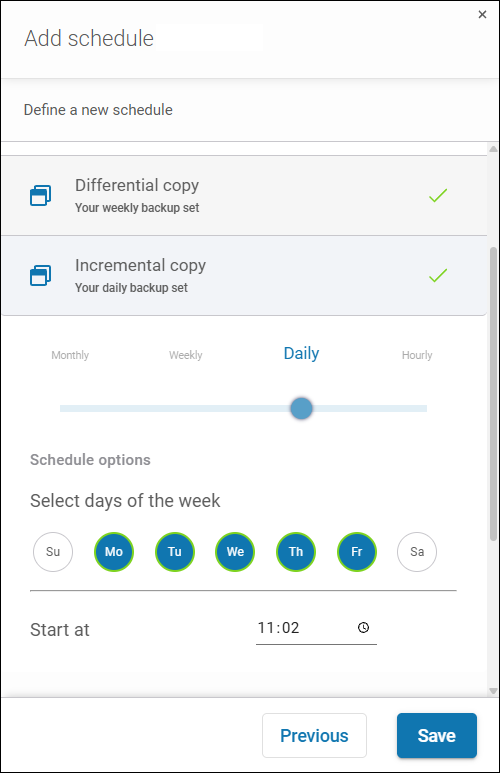
Once the schedule is selected, depending on copy types included in it, you set up the schedule for each copy type (time, day, frequency). GitProtect will automatically and cyclically run backups according to what you provided:
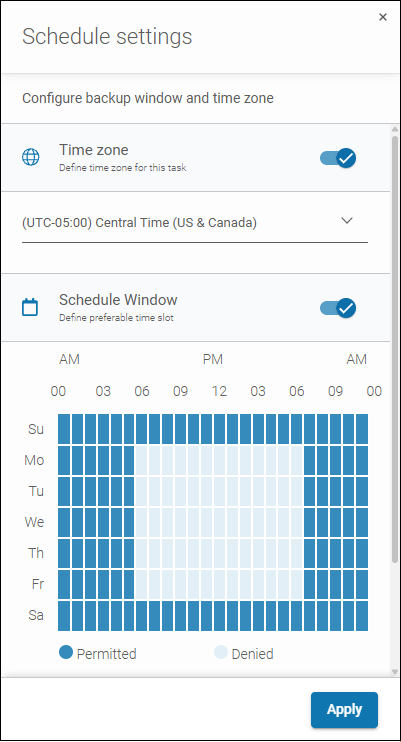
Going further down, you can click Edit next to Other settings to fine-tune your scheduler. First, you can choose a specific time zone for backup execution—a team in a different branch, on a different continent may require backups to run in alignment with their working hours.
Backup window is another useful feature letting you exclude backups from e.g., working hours to keep your infrastructure non-overloaded. Click one of the rectangles and drag your cursor to select the timeframes when backups are not permitted to run:
👉 Learn more about synthetic full backups that can help you limit the impact of backups on your resources and network, while optimizing the backup window.
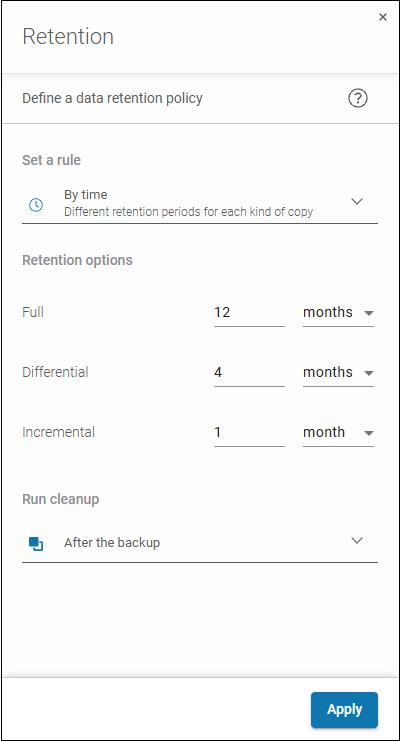
Last but not least, the retention settings allow you to adjust how long to keep backups of your Git repos and metadata to ensure secure recovery and meet compliance demands. With GitProtect, you can precisely set data retention policy by time or number of copies, or keep backups infinitely.
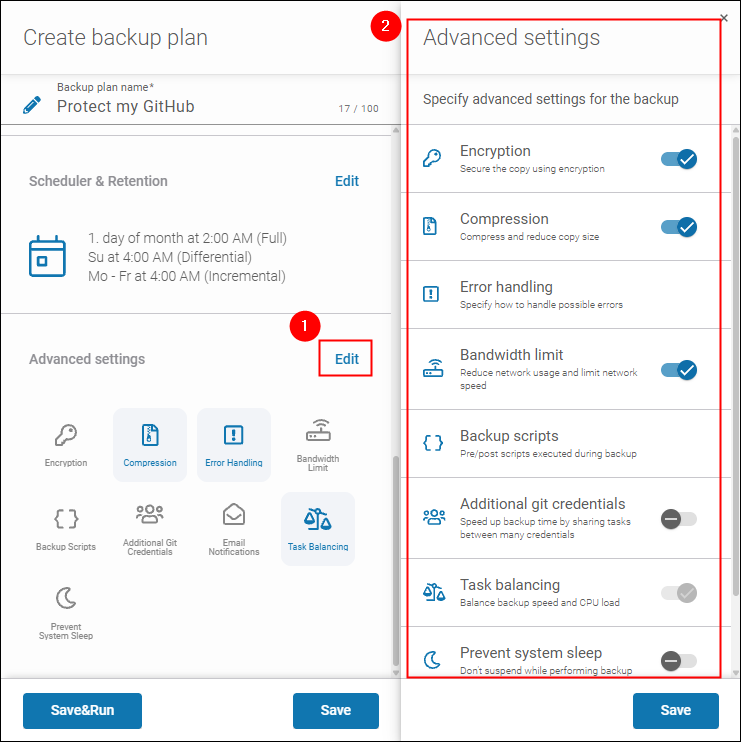
The backup plan configuration finishes with advanced settings. There, you can configure multiple security- or performance-focused features like encrypted backups, deduplication, compression, throttling prevention, bandwidth limitation, etc. to optimize your automated repo backups.
Multiple monitoring options to let you stay on top of things
GitProtect comes with a host of reporting and monitoring features to keep you informed and react if something goes wrong. You can take advantage of:
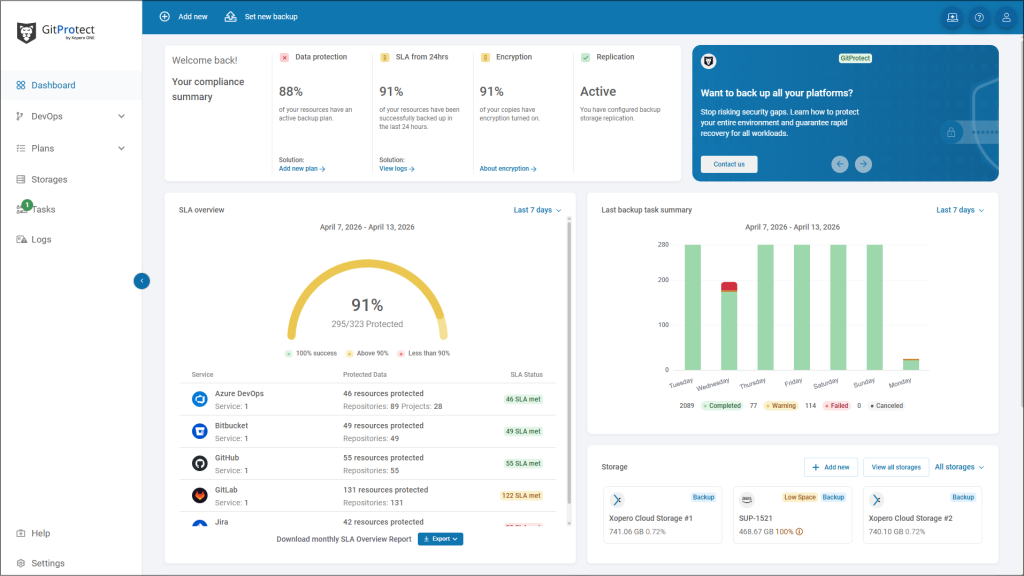
- SLA dashboard showing all the details about backup jobs
- Task list with details of every job
- Detailed audit logs
- Email, Slack, and webhook notifications
Easy (cross-)recovery to avoid tedious manual work
The disadvantage of custom (scripted) automated backup methods is a difficult, manual recovery process. For example, you may need to restore metadata by downloading JSON files from your backup storage and recreating the structure.
GitProtect allows you to recover all your repositories (with all metadata and LFS objects) at once, only specific repositories, or granularly, one by one. As for granular restores, you can also decide what you want to restore exactly: codebase, issues, PRs, or LFS. The process is simple and UI-based.
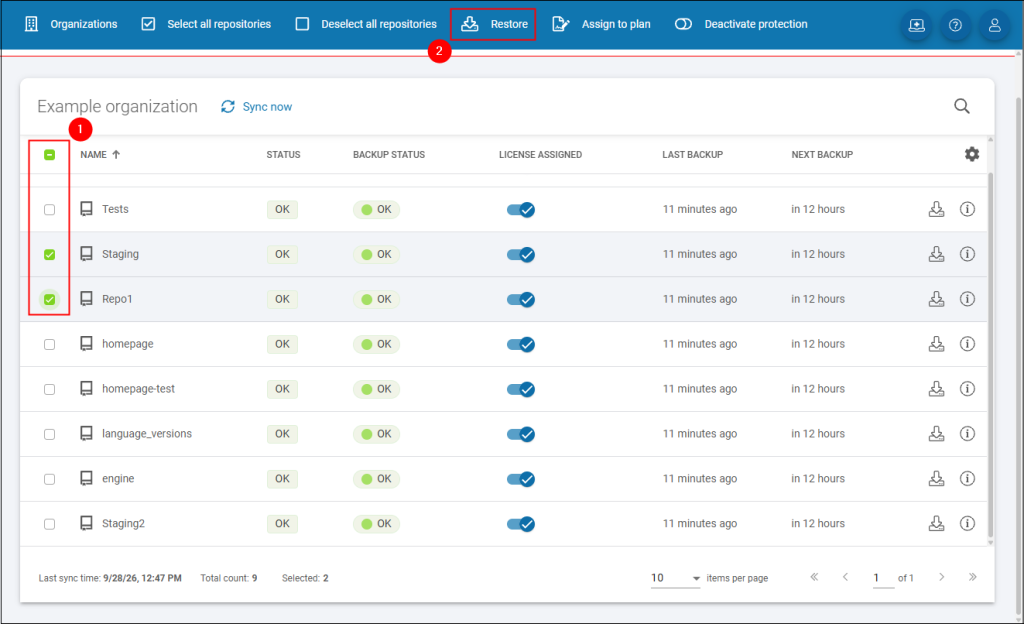
The tool also offers robust cross-recovery capabilities, no matter if you want to recover to a different organization (on the same platform), a different platform (e.g., GitHub to Bitbucket), or a different deployment (cloud to on-premises and vice versa).
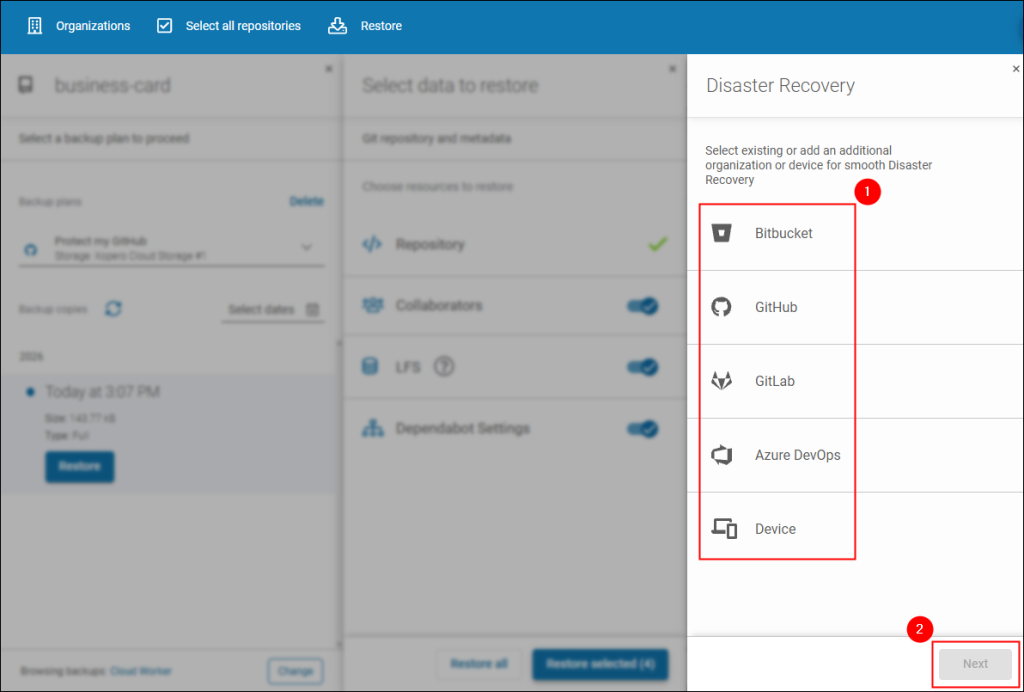
This can be extremely useful if your main production platform experiences a prolonged service outage or you want to smoothly migrate to a different provider or deployment setup. GitProtect handles all repo and metadata mappings automatically, giving you an option to manually intervene if something is off.
How to automate Git backups to maximize benefits
When designing or choosing an automated repository backup architecture, ISVs and enterprise IT security teams must look beyond simple scheduled code dumps. True resilience requires balancing security, resource efficiency, and recovery speed.
No doubt, custom and scripted, as well as native solutions have their advantages. However, each of them falls short because of considerable drawbacks, including problematic maintenance, non-automated restore, or no option for granular recovery.
Dedicated third-party Git backup platforms address these gaps, providing extra benefits:
- Automated asset discovery and policy enforcement—dedicated platforms like GitProtect can securely connect to your Git organization using secure authentication. Then, you can filter and select repositories to speed up and automate backup plan creation.
- Immutable, replicated, and air-gapped storage support—the platforms offer immutable backup and multi-storage support. You can use them to automate backup replication to several locations and set up an air-gapped backup for ultimate protection against ransomware and AI-augmented attacks.
- Built-in throttling prevention mechanisms—backup and restore are resource-intensive tasks, and cloud platforms apply API rate limits to cap excessive data transfers. GitProtect is unique in that it offers counter-throttling features to overcome this limitation and ensure the best backup and recovery performance.
- Simple restoration with granular options—professional Git backup tools let you restore a single repo with a few clicks. Native options lack granular recovery, while custom and scripted solutions require you to manually import and recreate individual items, making downtime impact bigger for your organization.
- Cross-platform restore for business continuity—dedicated Git backup platforms let you cross-migrate to a different cloud/on-premises provider, handling all data type mappings in an automated way. This ensures quick migration and maximizes operations to avoid operational, financial, and legal consequences.
- Audit-ready monitoring features—Git backup solutions include detailed logs and dashboards to help you track backup execution, protection coverage, SLA, and more. They also feature automated notifications (e.g., email, Slack, webhooks), so you immediately know you’re not protected and must take corrective steps.
Looking for a proven repository backup automation? We’ve got your back(up)
Automated repo selection, advanced scheduler, multiple restore options, and extensive monitoring aren’t the only hallmarks of GitProtect. The other enterprise-grade highlights include:
- Multi-platform support, including GitHub Enterprise Cloud with Data Residency
- Multi-storage support (cloud, on-prem, hybrid)
- Cloud and on-prem deployment
- Modern security, including Zero-Knowledge AES-256 encryption with your own encryption key, immutable and air-gapped backups, and more
- Development aligned with the Security and Privacy by Design principles thanks to regularly renewed SOC 2 Type II audits and ISO/IEC 27001 certifications.
Learn more about automatic backup for DevOps with GitProtect